

Ask two YouTube SEO tools about the same keyword, and you can get two different answers. One calls it easy to rank for. The other calls it competitive.
Neither is necessarily wrong. YouTube has never shared its actual search volume data, so every tool creates its own estimates from the data it can access.
That makes choosing a tool simpler. Instead of chasing the “most accurate” numbers, choose tools based on the job and how they help you understand the YouTube Algorithm: finding keywords, creating better titles, analyzing competitors, and measuring results.
This guide covers 10 YouTube SEO tools, what each does best, where it falls short, and how to use them together. Four are free and already built into YouTube.
Four of them are completely free and already built into YouTube.
In this article, you will learn:
- What YouTube SEO tools do and the four jobs they cover
- The free tools built into YouTube and Google
- Which paid tools earn their price
- TubeBuddy compared with vidIQ
- A repeatable process for every video you publish
- What no tool can do for you
What are YouTube SEO tools?
YouTube SEO tools are software that helps you find what viewers search for, write metadata around those searches, study competing videos, and measure whether your changes worked. Some run as browser extensions inside YouTube Studio. Others are separate websites you open in a tab.
Every useful tool covers at least one of four jobs:
Demand: Show you the words real viewers type into YouTube before they watch anything.
Optimization: Help you turn those words into a title, description, and thumbnail that earn the click.
Competition: Reveal which videos already answer that search and how well they do it.
Measurement: Prove whether the video gained search traffic after you published or edited it.
Most YouTube SEO tools handle two of those jobs well and the other two badly, which is why creators end up running two or three together. Sort any tool into one of those four boxes before you pay for it. Tools that fit none of them are usually generating tags, and you already know what YouTube thinks of tags.
Free YouTube SEO tools built into YouTube
Start here. These four cost nothing, use YouTube’s own data instead of an estimate of it, and most creators have never opened three of them.
1. YouTube Studio Trends tab
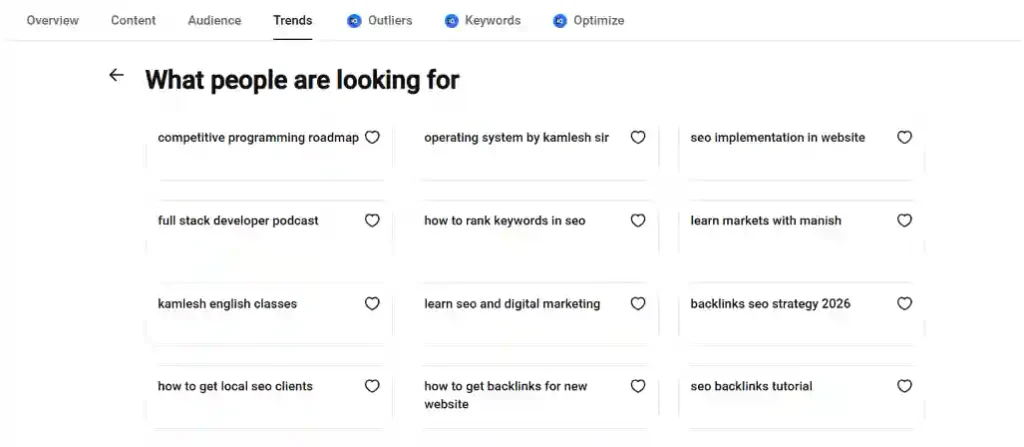
The Trends tab shows what your audience and viewers across YouTube searched for over the last 28 days. Sign in to YouTube Studio, open Analytics from the left menu, then click Trends at the top to access YouTube Studio Analytics.
Its best feature is the content gaps card. A Content gap on YouTube occurs when viewers search for a topic, but the available videos fail to provide enough relevant, high-quality, or current information to fully meet their needs.
Click Save next to any search term to keep it on your list. YouTube then uses your saved terms to tailor the recommendations you see the next time you open the tab.
Two limits matter. Interest levels are shown from very low to very high instead of exact numbers, while coverage is limited to certain countries, languages, and devices. Older guides may still call this the Research tab, but that name is outdated.
2. YouTube Studio Reach report
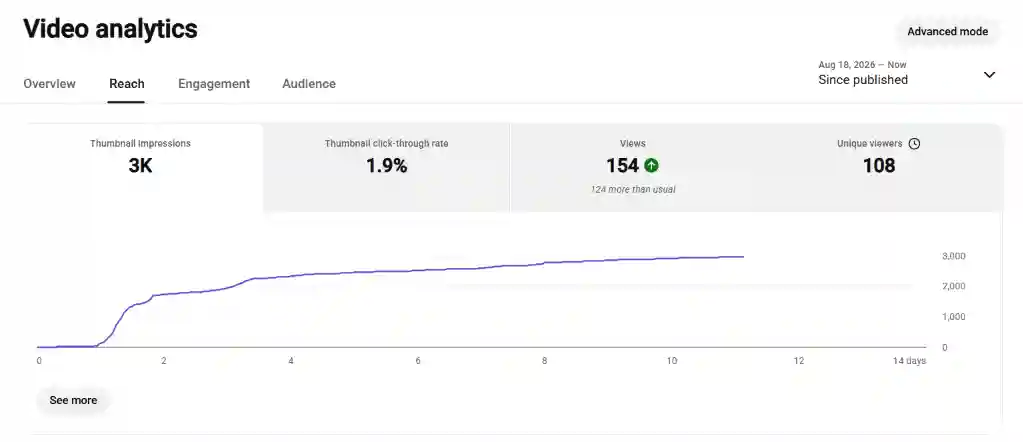
The Reach report tells you which searches actually brought views to a video you already published. Open YouTube Studio, click Content, select a video, click Analytics, then open the Reach tab.
Scroll to traffic source types and expand YouTube search. Each query listed there is a search where your video already appears and already gets clicked. Look for terms sitting just outside your intended topic, because those are searches YouTube matched you to without you asking.
Editing a title to match a query you nearly rank for is the highest return edit available on YouTube, and it takes ninety seconds.
3. YouTube A/B testing
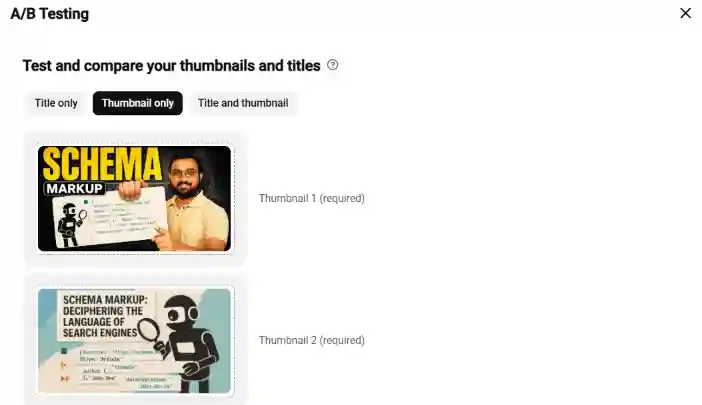
YouTube’s built-in A/B testing compares up to three titles, thumbnails, or title and thumbnail combinations on the same video, then keeps whichever earned the most watch time. Inside a video’s details page, click A/B testing under the title box or the thumbnail.
Watch time is the deciding metric, not clicks. That distinction matters in YouTube SEO, because third-party testing tools often run variants one after another and judge them primarily by click-through rate, which can ultimately crown a different winner. A misleading thumbnail wins on clicks and loses on watch time.
Tests finish within two weeks. Results come back as Winner, Performed the same, or Inconclusive, and the last two are normal rather than a failure. Upload every variant at 1280 x 720 or larger, because one small file downscales all of them to 480p.
Access requires a desktop and advanced features enabled on your channel. Short-form video content, scheduled lives, private videos, and content made for kids are excluded.
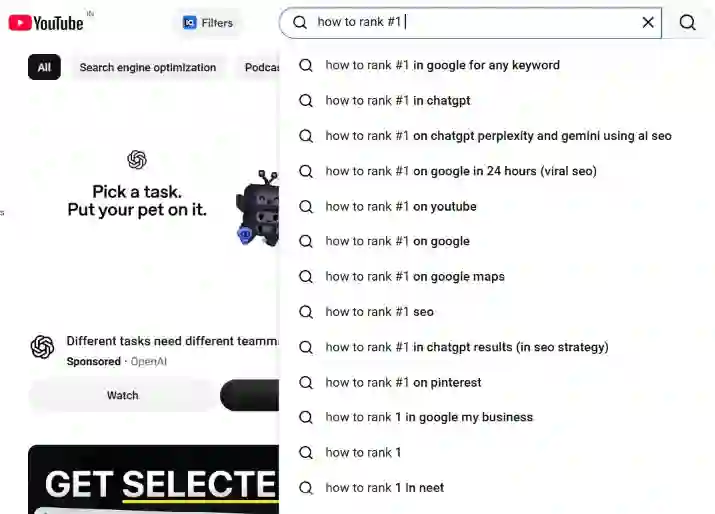
4. YouTube search autocomplete
YouTube’s own search bar is a free keyword tool, and it takes four seconds to use. Type your topic and stop before pressing Enter. Every suggestion below the box comes from what viewers actually search on YouTube.
Fan the list out by adding a word in front of your topic, such as how, best, why, or versus. Adding a single letter after your topic works too, since “budgeting a” and “budgeting b” return completely different suggestion sets.
No volume numbers appear, which is the trade-off. Autocomplete tells you a phrase is searched, never how often.
Free YouTube SEO tools from Google
YouTube’s parent company runs two products that hand creators data no video tool can match.
5. Google Trends
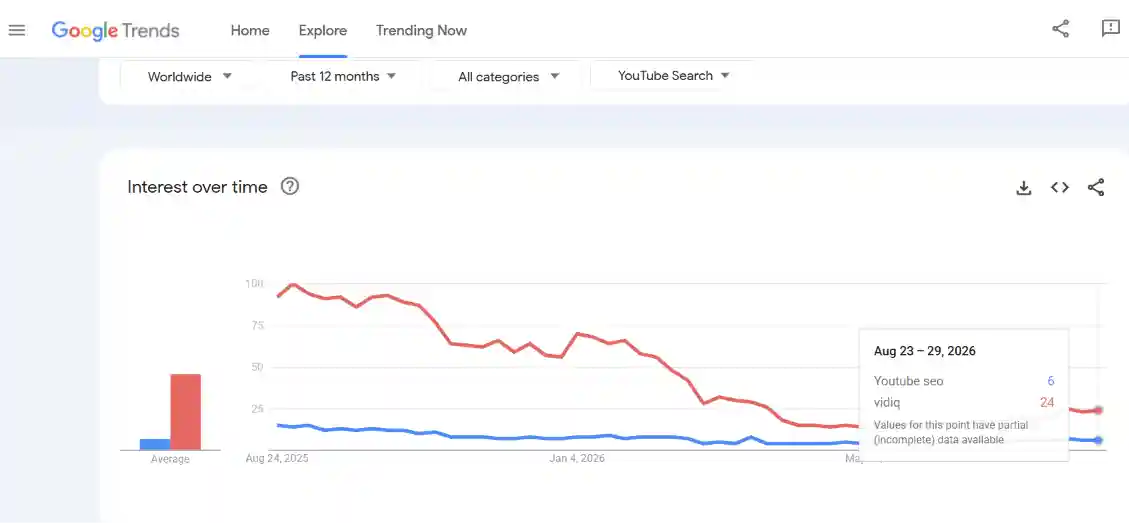
Google Trends is the one free tool that separates YouTube demand from web demand. Open trends.google.com, enter your topic, then change the search type filter from Web Search to YouTube Search.
Google’s Trends training material confirms these are five discrete datasets that never overlap. Practically, a topic can be flat on Google and climbing on YouTube, and only this filter shows you that.
Use it to settle arguments between two phrasings. Put both in the comparison box and publish the one with the stronger curve. Numbers here are relative interest on a 0 to 100 scale, never search volume, so treat the shape of the line as the answer.
Skip the search step and go straight to trends.google.com/trends/explore?gprop=youtube, which loads the YouTube filter already applied.
6. Google Search Console
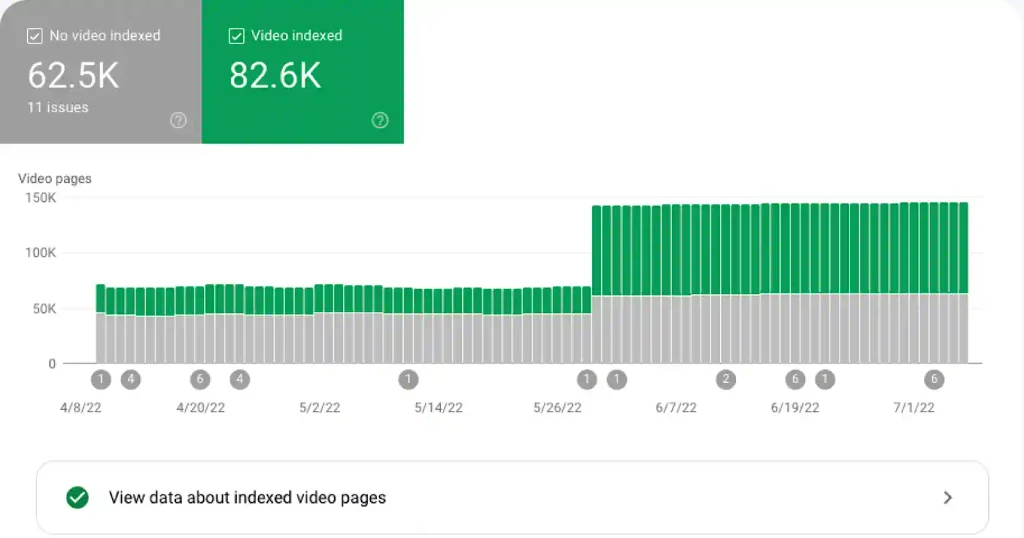
Search Console matters only if you embed your videos on your own website, and then it matters a lot. Its video indexing report shows how many of your pages contain a video Google indexed, plus the reason each failed video was skipped.
Google’s video SEO documentation sets the requirements plainly. The page holding the video must be indexed first, the video cannot be hidden behind other elements, and the thumbnail needs a stable URL.
Pair it with the Performance report and switch the search appearance filter to Videos, which lists the exact queries sending people to those pages.
Creators publishing only on YouTube can skip this one entirely.
Third-party YouTube SEO tools worth using
Third-party software buys you speed and scale, never secret data. Four options are worth your time.
7. TubeBuddy
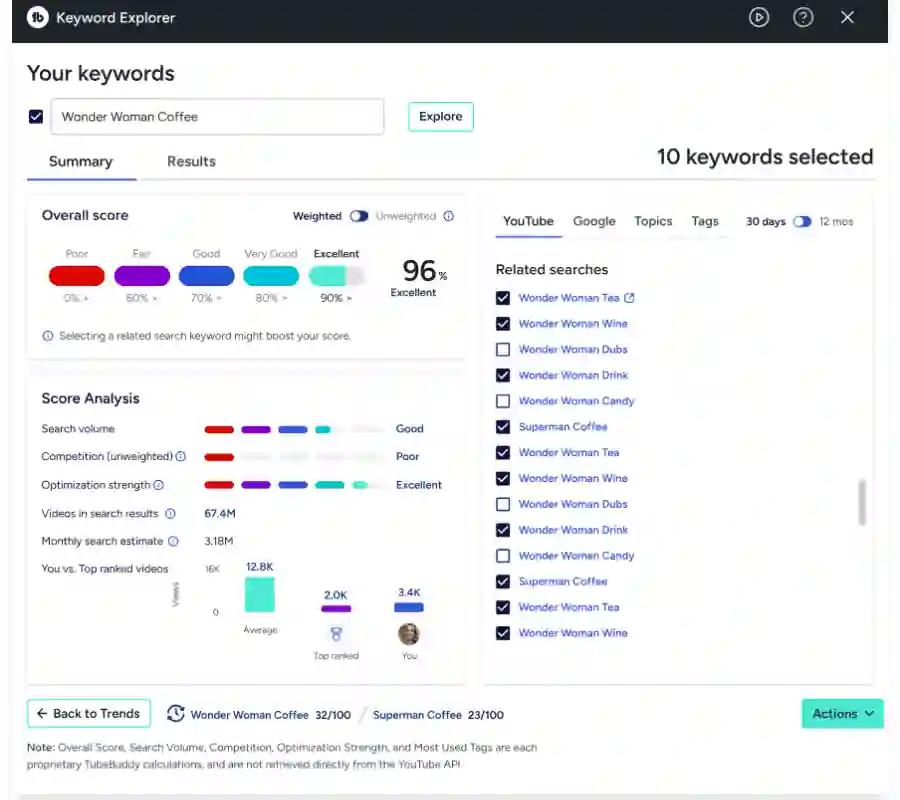
TubeBuddy is a browser extension that adds keyword research, an optimization checklist, and bulk editing directly inside YouTube Studio. Creators with a large back catalog get the most from it.
Keyword Explorer scores search terms for volume and competition. SEO Studio walks through a title and description checklist before you publish. Bulk find, replace, and append rewrites description text across hundreds of old videos in one action, which is the feature no free tool replaces.
Plans run Pro, Legend, and Enterprise. Click Magnet, Opportunity Finder, and full search rank tracking sit above the entry tier, so check the current pricing page before deciding.
Remember that its optimization score is TubeBuddy’s opinion, not a YouTube ranking signal.
8. vidIQ
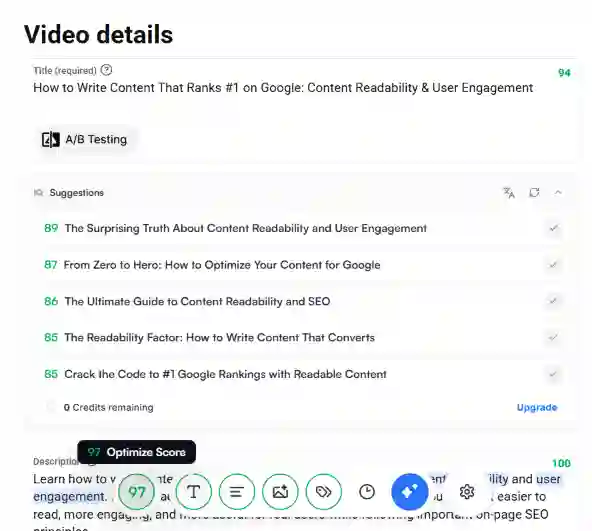
vidIQ is the better pick for finding video ideas and watching competitors. Its extension overlays stats on any video you visit, so you can see a competitor’s tags, views per hour, and engagement while you watch.
Keyword Inspector handles research, the scorecard grades a published video, and daily ideas suggest topics based on your niche. A free plan exists with a monthly credit allowance, and heavier AI use is what pushes you up the tiers.
Ideas need your judgment applied. vidIQ suggests topics that fit your niche, not topics that fit your ability to make the video well.
9. Ahrefs YouTube Keyword Tool
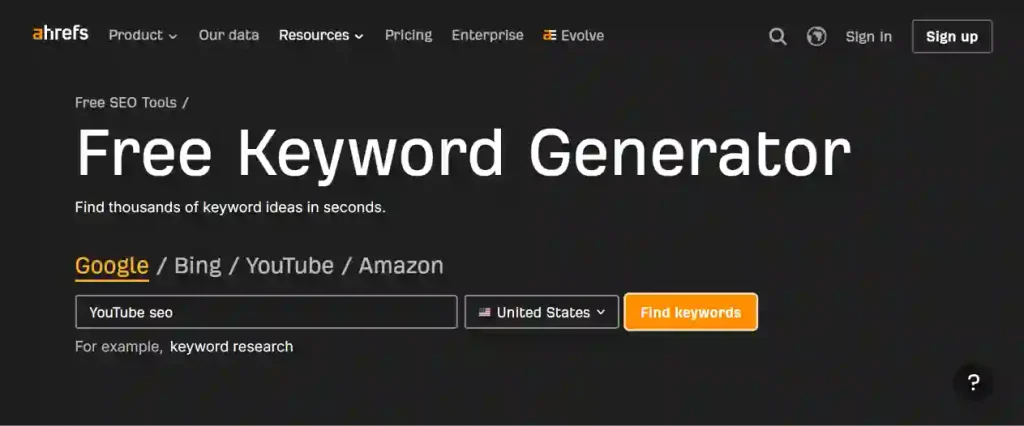
Ahrefs runs a free YouTube keyword tool that returns keyword ideas with volume estimates, and no subscription is required to use it. Enter a seed topic, set the platform to YouTube, and read the list.
Treat those volumes as a second opinion. Numbers come from Ahrefs’ own data model rather than from YouTube, which is why they will disagree with vidIQ and TubeBuddy on the same keyword. Disagreement across three tools tells you the phrase is uncertain and worth checking against the Trends tab.
10. Social Blade
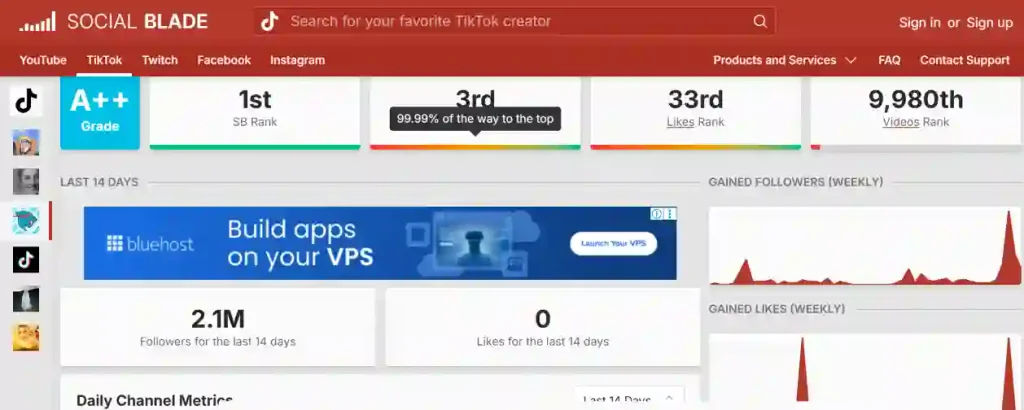
Social Blade tracks how a channel has grown over time using public data, free and without signing in. Paste a competitor’s channel URL and read the upload frequency, subscriber trend, and view trend across months. These insights can support YouTube channel optimization by showing which publishing patterns and growth trends are worth studying.
One question it answers well: is this competitor actually growing, or coasting on old videos? A channel gaining views while uploading less has evergreen search traffic worth studying.
TubeBuddy vs vidIQ: Which Should You Choose?
Choose TubeBuddy if you have a library to fix, and vidIQ if you have videos to plan. Both cover keyword research competently, so the deciding factor is the work sitting in front of you.
| Factor | TubeBuddy | vidIQ |
| Best for | Optimizing a back catalog | Planning new videos |
| Keyword research | Keyword Explorer | Keyword Inspector |
| Bulk editing | Yes, across hundreds of videos | Limited |
| Competitor view | Channel and scorecard data | Live stats on any video page |
| Idea generation | Video Topic Planner | Daily AI ideas |
| Free plan | Yes, limited | Yes, credit-based |
Run both free plans against your own channel for a month before paying for either. Most YouTube SEO tools only reveal their value once they are pointed at your real videos.
Creators publishing less than twice a month need neither. Free YouTube SEO tools cover that volume comfortably, and the money is better spent on a microphone.
How to use YouTube SEO tools on Every Upload
Run these six steps around each video, calling in the YouTube SEO tools covered above at the point each one earns its place. The whole cycle takes about thirty minutes.
- Pick the topic: Open the Trends tab, read the content gaps card, and choose a search your audience wants that nobody has answered well.
- Check the demand shape: Put your topic into Google Trends with the YouTube Search filter, then type it into YouTube autocomplete to collect the exact phrasings viewers use.
- Settle the wording: Run two or three candidate phrases through Ahrefs or Keyword Explorer. When the tools disagree, trust the Trends tab.
- Write the packaging: Put the main phrase near the front of the title, then answer the search in the first two lines of the description. Use SEO Studio or the vidIQ scorecard as a checklist, never as an instruction.
- Test after publishing: Start a YouTube A/B test with three genuinely different thumbnails. Variants that look alike produce inconclusive results.
- Read Reach at 28 days: Open the Reach report, expand YouTube search, and find queries where you appear but barely get clicked. Rewrite the title toward the strongest one and let the video run another month.
Step six is where compounding starts. A video edited three times against real search data beats a video published once and abandoned.
What YouTube SEO tools Cannot do?
No tool has YouTube’s search volume. YouTube has never published it, so every number you see from a third party is a model built from other sources. Compare tools, expect disagreement, and never make a topic decision on one estimate alone.
Tag generators solve a problem YouTube says barely exists. Fill the tag field with a handful of accurate terms and common misspellings, then spend the saved time on your title.
Optimization scores are vendor opinions. A green checkmark from any extension means the software’s rules were satisfied, and YouTube neither sees nor cares about that score.
Retention is beyond all of it. Tools can put your video in front of the right search, and nothing in this list keeps a viewer watching once they arrive.
Judge YouTube SEO tools by one measure: whether they shorten the distance between a real search and a published answer to it.
Frequently asked questions
1. Which SEO tool is best for YouTube?
YouTube Studio is the best tool because its data comes from your own viewers rather than an estimate. Add TubeBuddy for bulk optimization work, or vidIQ for planning, once you publish weekly.
2. Are free YouTube SEO tools enough?
Free YouTube SEO tools are enough for most creators publishing under four videos a month. The Trends tab, Reach report, autocomplete, and Google Trends cover research and measurement completely without any subscription.
3. Does YouTube have its own SEO tool?
YouTube provides several inside Studio: the Trends tab for search research, the Reach report for traffic sources, and A/B testing for titles and thumbnails. All three are free for eligible channels.
4. Do YouTube tag generators actually work?
Tag generators produce tags, but YouTube states that tags play a minimal role in discovery beyond covering common misspellings. Your title, thumbnail, and description decide whether the video gets found at all.
5. How do you check where your video ranks on YouTube?
Search the term in a private browser window and count positions manually, or use TubeBuddy’s search rank tracking. The Reach report inside Studio then confirms which searches send you actual views.
The One Thing Worth Remembering
Tools narrow guesses, and they never replace judgment. The creators who win with YouTube SEO tools are the ones who check the Reach report a month after publishing and edit the title toward what viewers actually searched.
Open YouTube Studio, click Analytics, and read the Trends tab. That single habit will do more for your channel this month than any subscription.
Also Read: How to Write a YouTube Video Description That Goes Viral