

YouTube is more than a video-sharing platform. It is a powerful search engine where people find answers, learn new skills, research products, and discover ideas. For creators and brands, it is an effective way to reach and grow an audience.
YouTube SEO is the work of filling them properly. YouTube’s documentation says your title, thumbnail, and description are the most important pieces of metadata for a video’s discovery, which tells you exactly where the work sits and how small it actually is.
This guide walks through that work on one video, one step at a time. Follow it to the end, and you will have a video YouTube can understand, and viewers have a reason to click.
What is YouTube SEO?
YouTube SEO is the process of optimizing a video’s title, description, thumbnail, chapters, and captions so YouTube can match that video to what people search for.
Two things have to be true before a video ranks. YouTube has to understand what the video covers, and viewers have to click it and keep watching. Every step below serves one of those two jobs:
- The words: Your search phrase, title, description, chapters, and captions tell YouTube what the video is about.
- The click: Your title and thumbnail decide whether anyone acts on a ranking you already earned.
Our full guide to YouTube SEO explains how the ranking system weighs all of this. What follows here is the doing.
What do you need before you start?
Three things:
- YouTube channel
- One video already uploaded
- YouTube Studio open in a browser
Work on a video that already gets a few views rather than a brand new upload. Existing views mean you can see whether your changes moved anything.
Every YouTube SEO change below happens in one place. Go to studio.youtube.com, open Content in the left menu, and click the video you want to work on.
Step 1: Pick One Primary Keyword
YouTube keyword research starts with one decision: which keyword this video is targeting.
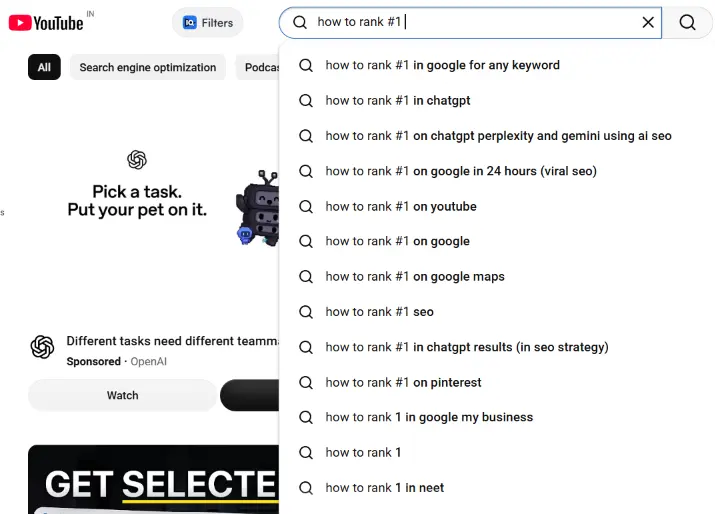
Type your topic into the YouTube search bar and read the suggestions that drop down. Those are real searches people are making right now. Pick the one that describes exactly what your video shows.
Give each video a single primary keyword. A video aimed at five phrases matches none of them cleanly, and the title ends up serving nobody.
Say your video walks through setting up a Google Business Profile. “google business profile” is broad, crowded, and vague about what a viewer would get. “how to set up google business profile” matches what your video actually does.
Step 2: Put the Keyword in Your Title
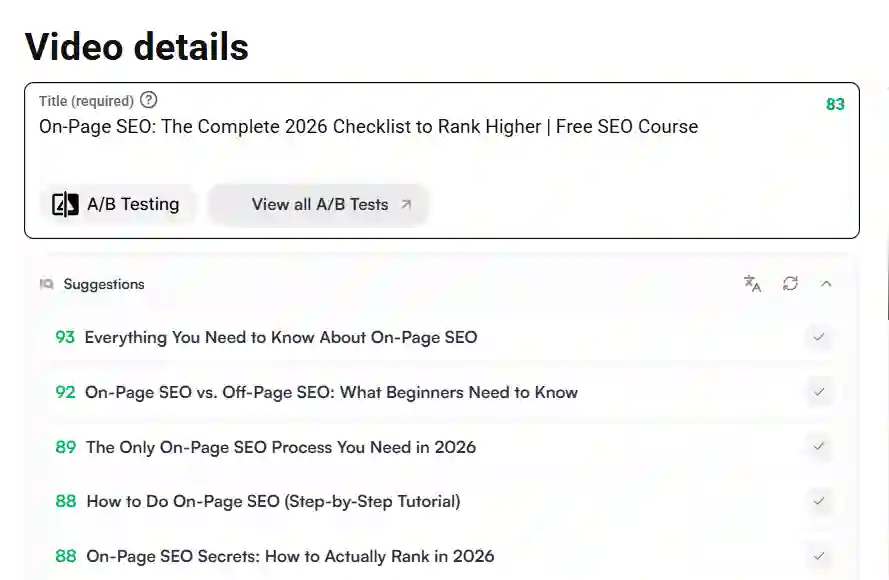
Open the title with the primary keyword, then add what the viewer gets. Someone searching “how to add subtitles to a video” should see those words at the front, where the eye lands first.
Compare two versions of the same title:
- Weak: Subtitles Explained
- Strong: How to Add Subtitles to a Video in 3 Minutes
The second version matches the search and makes a promise, which can improve YouTube CTR (click-through rate) by giving viewers a clear reason to click from the same position.
Keep the whole thing near 60 characters, because longer titles get cut off on phones. Resist overselling too. An exaggerated title lifts clicks for a day, then people leave early, and leaving early is what costs you the ranking.
Step 3: Write a Keyword-Rich first two lines
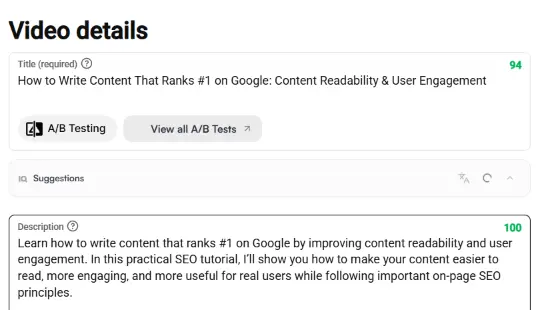
Viewers see about two lines before the description collapses behind “more.” Use them to clearly explain what the video covers.
Skip the channel introduction and focus on the video.
Below the fold, add your chapter list, relevant links, and a short paragraph of context. Avoid repeating your keyword unnecessarily. Keep the description natural and useful for viewers.
Step 4: Add Chapters to your Description
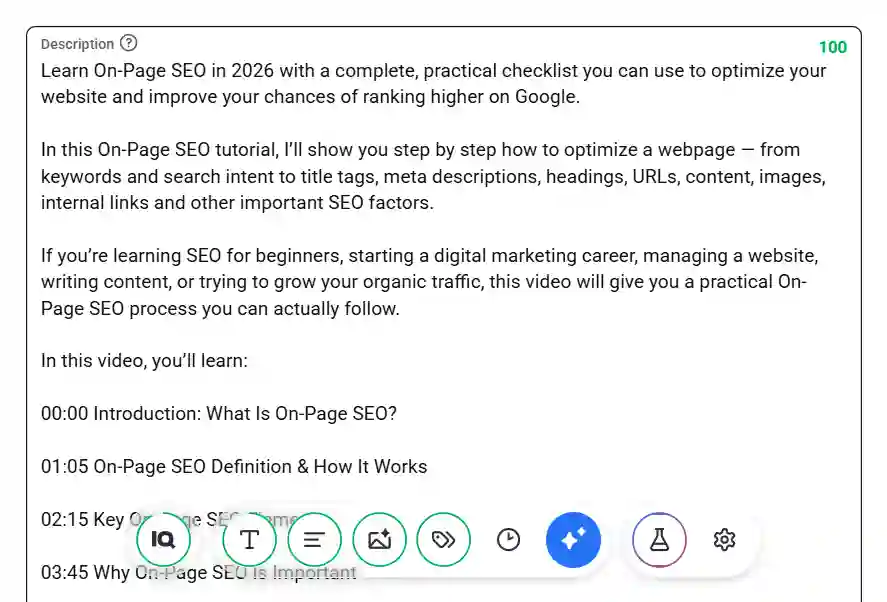
Chapters split your video into labeled sections viewers can jump between. You create them by adding a list of timestamps to the description, helping viewers jump to specific sections.
- Your first timestamp must be 00:00
- You need at least three timestamps
- Timestamps must run in ascending order
- Each chapter must last at least 10 seconds
Break one of those and the chapters silently fail. No warning appears, and your timestamps just sit there as plain text. Make sure you follow the proper format in your YouTube video description.
The format is one line each:
00:00 Intro
00:42 Setting up the tracking code
03:15 Testing that it fires
Label each section by what happens in it. “Setting up the tracking code” helps someone decide where to click. “Part 3” helps nobody.
Step 5: Upload a Thumbnail That Complements the Title
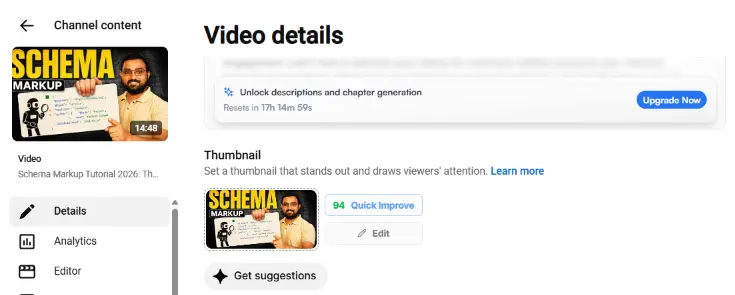
A thumbnail is a major factor in turning impressions into clicks. Its main job is to get people interested enough to click when they see your video.
Design for smaller screens, where the thumbnail needs to be easy to understand at a glance. Keep the text short and clear. Three or four large words are usually enough.
Most importantly, make the thumbnail add something new to the title. If your title says “How to Fix a Slow WordPress Site,” the thumbnail could show a before-and-after page speed score instead of repeating the same words.
Step 6: Correct your Captions
Captions are created automatically, but they are not always accurate. Brand names and technical terms can often be written incorrectly, especially when they are important to your video.
Open Subtitles in YouTube Studio, check the automatic captions, and fix any mistakes. A few minutes of editing can make sure the captions match what you actually said.
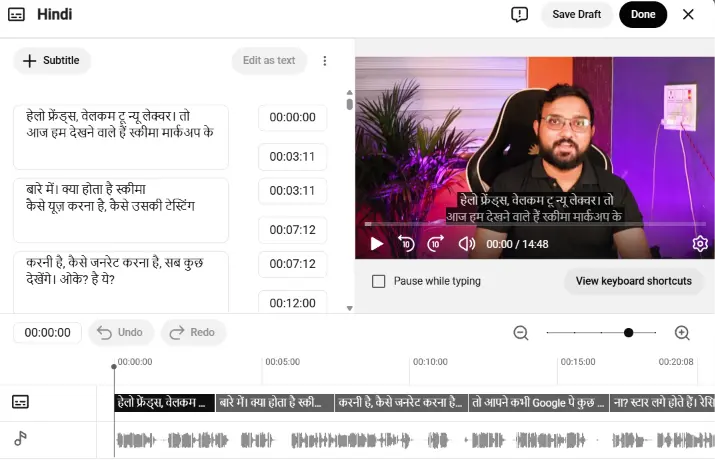
[IMAGE PLACEHOLDER] Alt: YouTube Studio subtitles editor with a misheard brand name being corrected in the automatic transcript.
Step 7: Add a Few Relevant Tags, Then Stop
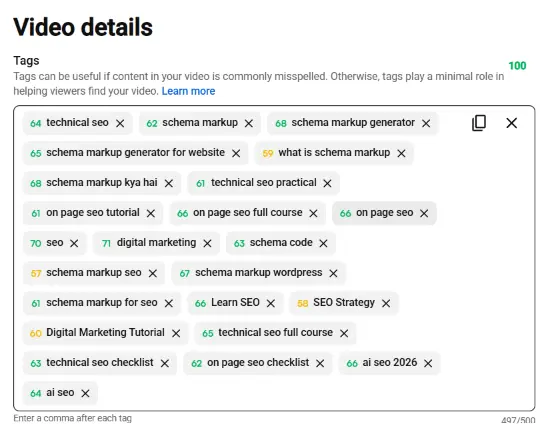
Tags are the most misunderstood part of YouTube SEO. YouTube states plainly that tags play a minimal role in a video’s discovery, and that title, thumbnail, and description are the more important pieces of metadata.
One real use survives. YouTube points out that tags help when the content of your video is commonly misspelled, so a video about Squarespace can carry a tag for “square space”.
Three things get confused with each other here, which is part of why the myth lives on:
- Tags: A private field inside YouTube Studio that viewers never see.
- Hashtags: Public links that appear in your title and description.
- Keywords: The phrases you are targeting, which belong in your title and description.
Add five or six accurate tags and move on. The hour people lose to tags belongs to the thumbnail.
How do you know if it worked?
Wait 28 days, then open Analytics in Studio and read three numbers:
- Impressions: How often YouTube showed your video to anyone, which tells you whether it is being served at all.
- Impressions click-through rate: What share of those impressions became clicks, which measures your title and thumbnail.
- Average view duration: How long people stayed, which measures whether the video delivered what it promised.
Subscriber count tells you nothing about search performance. Reading these three numbers properly, and knowing which one to act on when it drops, is covered in our main YouTube SEO guide.
What should you do next?
Run these seven steps on your three most-viewed videos before you make anything new. Videos already collecting views have proven demand attached to them, so improving one pays back faster than optimizing something nobody has looked for yet.
FAQs
1. Can you change a video’s title and description after publishing?
Yes, and you should. Editing metadata on a published video is normal and carries no penalty. Change one thing at a time so you can tell which change moved the numbers.
2. Do you need a paid tool to do YouTube SEO?
No. The search bar, YouTube Studio, and Analytics cover everything in this guide at no cost. Paid tools save research time once you publish regularly, but they add nothing to your first ten videos.
3. Does YouTube SEO work if you only have a few videos?
Yes. YouTube ranks one video against one query, so a small channel with a closer topic match and stronger watch time can appear above a much larger one.
4. Where do keywords actually go in YouTube Studio?
Your title first, then the opening lines of your description, then your chapter labels. Those three fields are tied to what people search for. The tag box is not one of them.
Twenty minutes decides who finds your video
Everything above takes roughly twenty minutes on a video that is already published. Filming is done, editing is done, and a handful of fields decide whether anyone ever sees the result. YouTube SEO is simply refusing to leave those fields blank.
Nothing here needs a budget, a tool, or a bigger channel. It needs one video and one honest search phrase.
Also Read: YouTube Channel Optimization: Fix Your Channel First