


Last updated: August 7, 2026
Most people reading this already have a sitemap. Your SEO plugin generated one the day you installed it, and you probably submitted it once and never opened that report again. The problem is that a quiet sitemap can still be pointing Google at deleted pages, missing your best pages, or failing to load at all. Here is how to submit an XML sitemap to Google properly, check that Google accepted it, and fix the errors we hit most often on client sites.
Key takeaways
- An XML sitemap lists the pages you want Google to find, which speeds up discovery on new, large, or frequently updated sites.
- Search Console and robots.txt are the only two supported submission routes. Search Console is the only one that reports back.
- Submission helps Google discover pages. It does not guarantee indexing.
- Only canonical, indexable URLs belong in the file. Noindexed and redirected URLs do damage.
- Google reads lastmod when the dates are trustworthy, and ignores priority and changefreq completely.
What exactly is an XML sitemap?
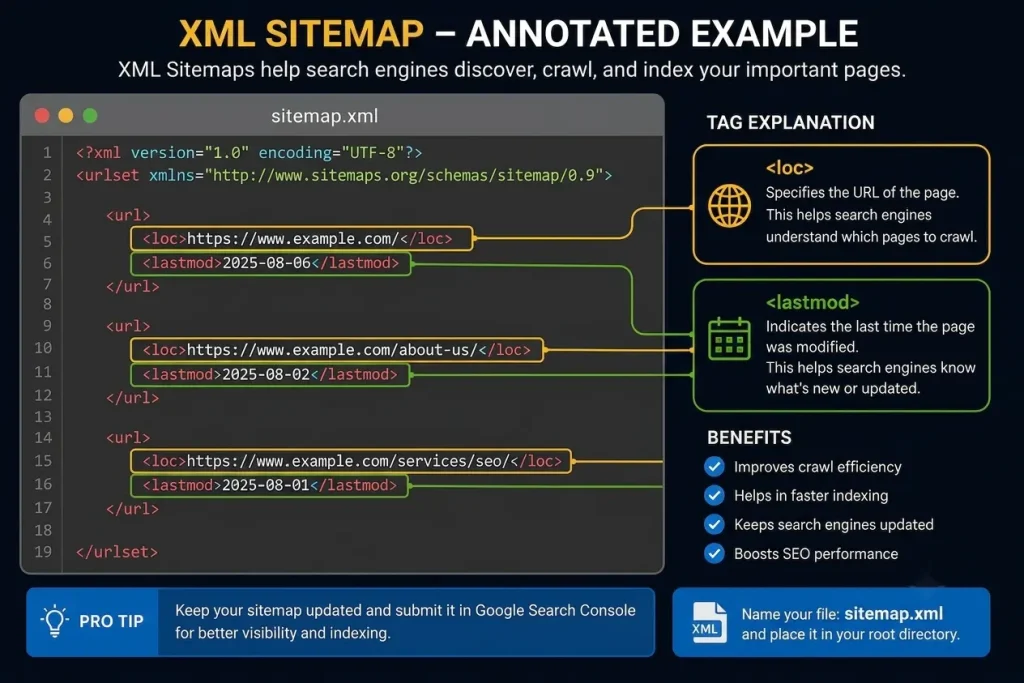
An XML sitemap is a file listing the pages you want search engines to crawl, along with when each one last changed. Think of it as a roadmap you hand to Google instead of making Googlebot wander your site link by link.
Each page sits inside a <loc> tag, usually paired with a <lastmod> date.
<?xml version=”1.0″ encoding=”UTF-8″?>
<urlset xmlns=”http://www.sitemaps.org/schemas/sitemap/0.9″>
<url>
<loc>https://scalequix.com/technical-seo-services/</loc>
<lastmod>2026-07-14</lastmod>
</url>
</urlset>
Two hard limits apply. A single file is capped at 50,000 URLs and 50MB uncompressed, and crossing either line means splitting the file and listing the pieces in a sitemap index.
Do not confuse this with an HTML sitemap, which is a normal page listing your sections for human visitors. The XML file is for crawlers and carries lastmod dates. The HTML version is for people and passes internal link equity. Different jobs.
What does Google actually do with it?
Google treats a sitemap as a suggestion, not an instruction. Internal links still carry far more weight when Google decides which pages matter.
It is also picky about tags. Google’s sitemap documentation states plainly that it ignores <priority> and <changefreq> values, while lastmod is used as a crawl scheduling signal when the dates reflect reality.
One thing we see across WordPress audits: a plugin update resets every lastmod date to the same day. Once your sitemap claims everything changed on Tuesday, Google stops trusting the signal. Open your XML sitemap and check the dates vary sensibly.
Does your site actually need one?
Not always. The Search Console Help documentation says that if you have roughly 500 pages or fewer and every page is reachable by following links from your homepage, you probably do not need a sitemap or the report.
That said, it takes two minutes to submit an XML sitemap to Google, and it earns its place clearly in five situations.
- Brand new sites: with almost no external links, Google has few natural paths in. The sitemap creates one on day one.
- Large catalogues: a sitemap index splits products, categories, and posts into separate files, so the report shows which section is struggling.
- Sites that publish often: accurate lastmod dates focus recrawling on genuinely fresh pages instead of your About page.
- Deep or orphaned pages: anything five clicks from the homepage rarely gets crawled promptly.
- Post-migration recovery: a clean regenerated file speeds up rediscovery of the new URL set.
Now the caveat that matters more than all five. Submission helps Google find pages, not keep them. Google’s page indexing documentation is blunt: do not expect every URL on your site to be indexed.
What a broken sitemap cost one ecommerce brand
We ran into exactly this with Timberline Gear, a WordPress ecommerce brand whose search traffic stalled right after a site overhaul. Nothing in their content had changed. Their rankings simply stopped moving, and new product pages were not appearing in search at all.
Digging in, we found the cause was not the redesign itself. A default setting in their SEO plugin had stripped key product category pages and custom post types out of the XML sitemap, effectively hiding over 300 revenue-generating pages from Google’s crawlers.
We reconfigured their sitemap settings to include all critical taxonomies, cleaned up the canonical tags so each product resolved to a single indexable URL, and resubmitted the updated index through Google Search Console.
Within three weeks, Google re-indexed the missing pages, organic traffic bounced back by 40%, and lead submissions hit pre-launch numbers.
The lesson generalises. Before you assume a traffic drop is a content or algorithm problem, open your sitemap and count the URLs in it. A plugin default can quietly remove an entire post type, and nothing in Search Console will flag it as an error, because the file itself is perfectly valid.
Where do you find your sitemap?
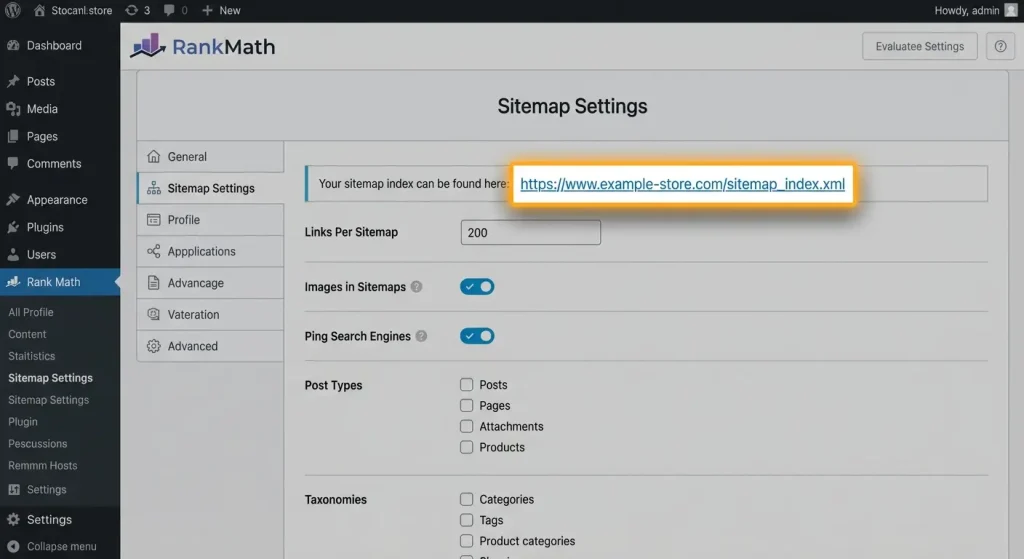
Type your domain followed by /sitemap.xml into a browser. If that fails, try /sitemap_index.xml. One of the two almost always works.
| Platform | Where the sitemap lives |
| WordPress + Yoast SEO | /sitemap_index.xml |
| WordPress + Rank Math | /sitemap_index.xml |
| WordPress core, no plugin | /wp-sitemap.xml |
| Shopify, Wix, Squarespace, Webflow | /sitemap.xml |
| Custom or static sites | /sitemap.xml, generated manually |
On WordPress the plugin handles this automatically. In Rank Math, go to Rank Math → Sitemap Settings. In Yoast, it is Yoast SEO → Settings → Site features → XML sitemaps, then click the question mark icon to open the live file.
The configuration mistake we see most: both plugins active at once, fighting over the same URL and serving an empty or half broken file. Pick one, deactivate the other.
How do you submit an XML sitemap to Google Search Console?
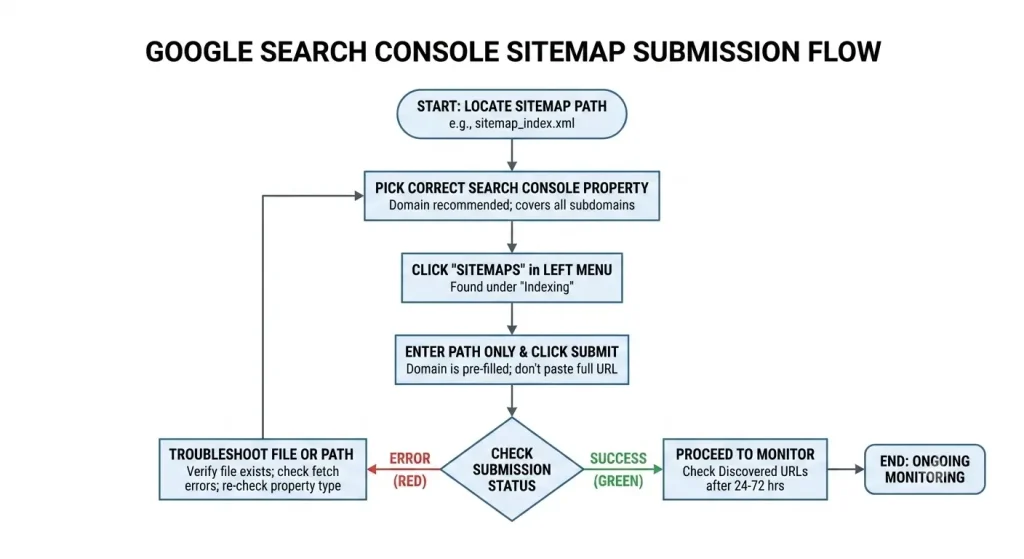
To submit an XML sitemap to Google, open Search Console, pick the right property, click Sitemaps, paste the path, and hit Submit. Google fetches the file immediately, and a green Success means it parsed cleanly.
One change still trips people up. Google deprecated the sitemaps ping endpoint in June 2023, confirming that submissions now go through robots.txt and Search Console while requests to the old endpoint return a 404.
1. Open Search Console and sign in with an account holding owner permissions on the property.
2. Pick the correct property. A Domain property covers every subdomain and protocol. A URL prefix property covers one exact variant only.
3. Click Sitemaps in the left menu, under Indexing.
4. Type the path only, so sitemap_index.xml, not the full URL. The domain is prefilled.
5. Click Submit.
6. Check the status. Anything other than Success means the file could not be fetched or parsed.
7. Return in 24 to 72 hours to check the discovered URL count.
If you control your DNS, use a Domain property. It permanently kills the most common submission error we see, which is an HTTPS sitemap submitted inside an HTTP or non-www property.
Did Google actually accept it?
The Sitemaps report answers this, and four columns tell you almost everything.
- Status: Success means the file parsed cleanly, Has errors means it parsed partially, and Couldn’t fetch means Google never retrieved it.
- Type: confirms whether Google read a single sitemap or an index, which is your quickest check that child files are being followed.
- Last read: should update periodically. A date frozen weeks in the past usually means the file started erroring after submission.
- Discovered URLs: compare against your real page count. A 480-URL sitemap reporting 12 discovered almost always means a caching plugin is serving Google a stale file.
Then open the Page indexing report separately. Discovered is not indexed, and this is where you learn why pages were excluded.
What if Google cannot read your sitemap?
Nearly every XML sitemap error traces to one of three causes: Google cannot reach the file, the file is not valid XML, or the URLs inside do not match the property you submitted under.
| Error | What is happening | Fix |
| Couldn’t fetch | Google never got the file | Load the URL yourself, then check server, firewall, CDN, and bot blocking rules |
| Sitemap is HTML | The URL returns a web page, not XML | Regenerate through your plugin, check no theme intercepts the path |
| General HTTP error | Server returned a 4xx or 5xx | Check server logs and hosting status, retry after fixing |
| Invalid XML | Broken tags or unescaped characters | Validate the file, escape ampersands, re-export |
| 404 not found | Wrong path submitted | Try /sitemap_index.xml or /wp-sitemap.xml |
| Sitemap is redirected | The URL 301s elsewhere | Submit the destination URL directly |
| Blocked by robots.txt | A Disallow rule covers the file | Remove the rule, retest in a robots.txt tester |
| Wrong property | URLs do not match the property variant | Resubmit under the matching property, or switch to a Domain property |
Say your file sits at https://scalequix.com/sitemap_index.xml but the property is registered as http://www.scalequix.com. Google throws a mismatch error even though the file opens perfectly in your browser.
Stuck on Couldn’t fetch? Open the sitemap in incognito, then run a live test with the URL Inspection tool. Together they tell you whether the problem is your server or Google’s access.
How do you keep a sitemap clean?
An XML sitemap is a curated recommendation list, not a full inventory of every URL your CMS can produce. That distinction is where most sites go wrong.
- Canonical URLs only: listing parameter or duplicate versions sends Google conflicting signals about which version deserves to rank.
- No noindex, redirected, or 404 URLs: listing a page you have explicitly blocked tells Googlebot to crawl what you asked it to ignore, and enough of those erode trust in the whole file.
- Keep lastmod honest: update the date only when content genuinely changes, because Google discounts the tag once it notices every date shifting on every deployment.
- Split large files by content type: separate sitemaps for posts, pages, and products show you exactly which type has a discovery problem.
- Submit the index, not every child file: the index already references them, so submitting both just clutters the report.
- Use absolute HTTPS URLs: every <loc> value needs the full URL on your canonical protocol and hostname, or parsing fails.
How do you add your sitemap to robots.txt?
This is the second supported way to submit an XML sitemap to Google, and it takes one line placed anywhere in the file.
User-agent: *
Allow: /
Sitemap: https://scalequix.com/sitemap_index.xml
Position does not matter, because Google’s robots.txt specification confirms the sitemap field is not tied to any user agent and may be followed by all crawlers, Bing included.
While you are in there, check that robots.txt is not accidentally disallowing the sitemap path itself. We have found that more than once.
What should you do after submitting?
Give Search Console fifteen minutes a week for the first month.
Run URL Inspection on your commercially important pages first, so you confirm crawlability and canonical selection before blaming the sitemap. Then filter Page indexing by All submitted pages and look at your largest exclusion reason, because that single line usually reveals whether you are facing duplication, quality, or a configuration slip.
After that, strengthen your internal linking. Any page reachable only through the sitemap is telling Google it is not important, and no sitemap fixes that. Clearing 404s and redirect chains helps too, since it frees crawl capacity for new content.
Common questions about submitting sitemaps
Does submitting an XML sitemap improve Google rankings?
No. Sitemaps affect discovery and crawling, not relevance or quality. But a page Google never finds cannot rank at all, which makes submission a prerequisite rather than a ranking factor.
How long does Google take to process a submitted sitemap?
Usually a few hours to a few days for the initial fetch, though working through every listed URL can take weeks on larger sites. The Last read date confirms whether Google is still checking.
How often should you submit an XML sitemap to Google?
Once, then rarely again. Plugins regenerate the file automatically when you publish, and Google refetches on its own. Resubmit manually only after a migration, domain change, protocol switch, or a structural change to the sitemap.
Can you submit an XML sitemap to Google without Search Console?
Yes, add a Sitemap line to robots.txt and compliant crawlers will find it. The trade off is losing all reporting, so you will never know whether Google fetched the file or hit an error.
Should noindex pages be in a sitemap?
No. A sitemap recommends pages for indexing, so a noindexed URL sends two contradictory instructions at once. Exclude noindexed archives, thank you pages, and thin taxonomy pages at the plugin level.
Can a sitemap fix “Crawled currently not indexed”?
No. That status means Google found and crawled the page but decided against indexing it, which is a quality, duplication, or demand signal. Resubmitting changes nothing.
Does an XML sitemap help with Google AI Overviews?
Only indirectly. AI Overviews pull from indexed content, so faster discovery makes your pages eligible. Content quality, clear direct answers, and page experience decide whether you get cited.
Wrapping up
Choosing to submit an XML sitemap to Google is one of the quickest wins in technical SEO. Two minutes of work, and you get an ongoing report most site owners never open.
Hold onto the underlying idea. A sitemap tells Google where your pages are. Your content decides whether they are worth keeping. Submit the file, confirm the green Success, clear the errors, then get back to building pages worth finding.
If you would rather have someone handle the crawl and indexing side properly, take a look at our technical SEO services, or browse more guides on the ScaleQuix blog.