


YouTube Studio analytics is the free reporting dashboard built into every channel. Four reports inside it measure search performance: traffic source types, the YouTube search terms report, impressions, click-through rate, and audience retention. Open studio.youtube.com, click Analytics in the left menu, then open the Content tab to find the first three.
Every creator starts a YouTube channel dreaming of the day those monetization dollars start rolling in.
But here is the harsh reality. Without understanding your YouTube Studio analytics, that dream stays a fantasy.
Most creators obsess over hitting 1,000 subscribers and 4,000 watch hours. Meanwhile, they ignore the deeper metrics that actually help the YouTube Algorithm push them there. Turning a channel into a business means you stop guessing and start reading the data.
Reading that data is simpler than it looks. Four screens do almost all the work, and each one answers a different question about whether your videos are being found.
What is YouTube Studio Analytics?
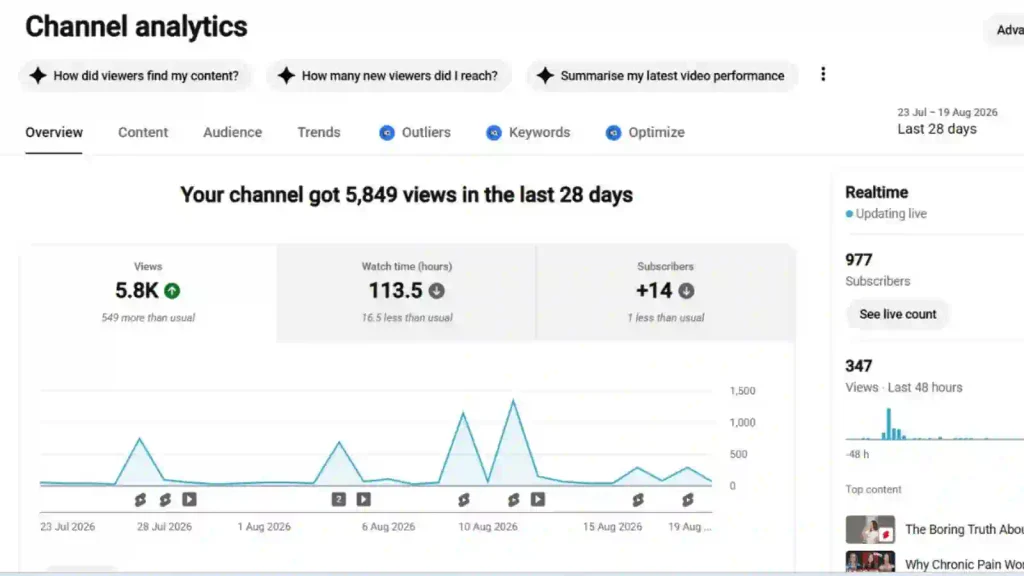
YouTube Studio analytics is the free reporting dashboard included with every YouTube channel. The dashboard records how many people saw your videos, where they found them, how long they stayed, and who they were.
Opening it takes three clicks:
- Sign in at studio.youtube.com.
- Click Analytics in the left menu.
- Use the tabs across the top: Overview, Content, Audience, and Trends.
Overview gives you the headline numbers. Content is where nearly all the search data sits. Audience describes who is watching. Trends shows what your viewers are searching for across YouTube.
One more control matters.
Advanced mode: Click it in the top right to compare videos side by side, apply filters, and export everything to a spreadsheet, as YouTube’s own documentation explains.

Which Metrics Measure YouTube SEO Performance?
Four reports measure search performance:
- Traffic Source Types: See where your views are coming from.
- YouTube Search Terms: Discover what viewers searched to find your videos.
- Impressions Click-Through Rate: Measure how often viewers click after seeing your thumbnail.
- Audience Retention: See how well your video keeps viewers watching.
Views and subscribers show the result; these four reports explain why you got that result.
| Report | Where to find it | What it proves |
| Traffic source types | Content tab | How much of your traffic search is actually producing |
| YouTube search terms | Content tab, inside YouTube search | Which queries you already rank for |
| Impressions and CTR | Content tab | Whether your title and thumbnail earn the click |
| Audience retention | Inside any single video’s analytics | Whether viewers got what the search promised |
Views alone can’t tell you whether a video ranked in search or simply got pushed by the Home feed. Subscriber count also doesn’t show which YouTube SEO factors brought someone to your channel. Both metrics can change for reasons you can’t directly control, making them less useful for optimization work.
The difference is that these four reports give you actionable insights into what’s working and what you can improve.

How to find the search terms bringing you views
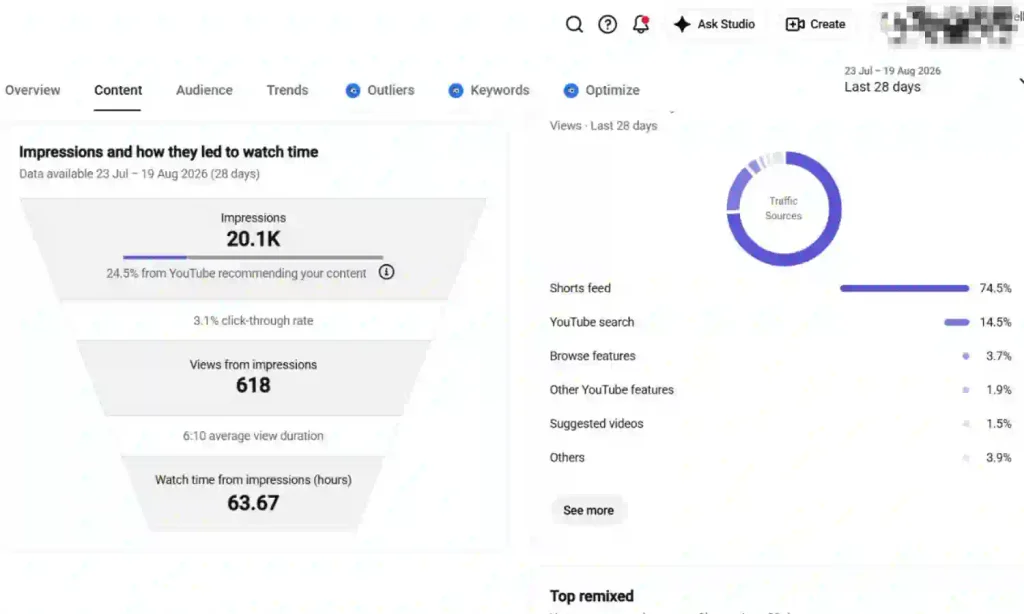
The search terms report sits inside the Content tab, two clicks below the traffic source card. Here is the path:
- Open Analytics, then click the Content tab.
- Find the card showing how viewers find your content.
- Click Traffic source types, then select YouTube search.
- Read the list of terms.
YouTube documents this report directly: The YouTube search report shows the terms viewers searched when they found your content.
No third-party tool is needed, and no estimate is involved. These are real queries from real viewers.
Three things to look for once the list loads:
Terms missing from your metadata: If a keyword is ranking well without appearing in your title or description, YouTube may have understood the topic from other signals. Add the relevant term naturally to your title and the first two lines of the description to strengthen the YouTube Video Description and its relevance.
Terms slightly off your topic: A query you never targeted can reveal a new content opportunity with proven demand. Use it to plan your next upload and strengthen your YouTube Keyword Research.
A very short list: Almost no search traffic may mean the topic has low demand or your metadata doesn’t match how people search. Compare your title with the phrasing YouTube suggests in the search bar.

How to Read Impressions and Click-Through Rate
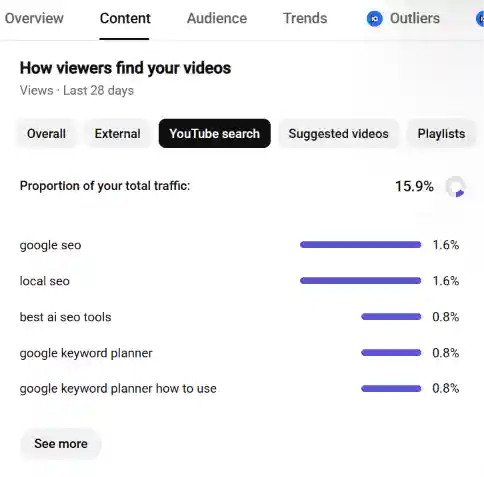
An impression is counted each time YouTube shows your thumbnail to someone. Click-through rate is the share of those impressions that became a view. Ranking earns the impression. The thumbnail and title earn the click.
Both numbers appear in the Content tab and in Advanced mode.
For a benchmark, YouTube states that half of all channels and videos have an impressions click-through rate somewhere between 2% and 10% giving you a useful reference point for YouTube CTR. Newer channels, videos less than a week old, and videos with fewer than 100 views swing much wider than that.
Read impressions before you read the percentage. A 12% rate on 40 impressions is noise. A 3% rate on 9,000 impressions is a real signal, and it points at a packaging problem worth fixing.
Where the impressions came from changes the number too. Search traffic tends to click higher, because those viewers typed the exact thing they wanted. Home feed traffic tends to click lower, because those viewers were not looking for anything. Comparing a search-heavy video against a browse-heavy one tells you nothing useful.
How to Read Audience Retention
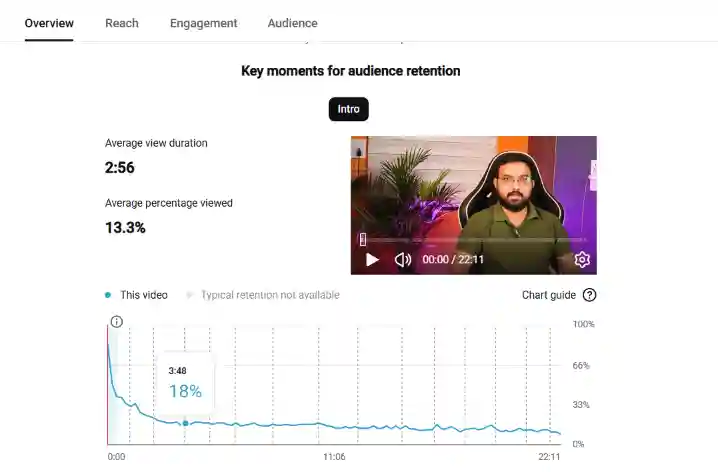
Audience retention shows the percentage of a video still being watched at every second of its runtime. Open any video from the Content page, click Analytics, and the retention curve appears on the Overview tab.
YouTube labels four moments on that curve:
Intro: The percentage of your audience still watching after the first 30 seconds. This is the steepest drop on almost every video.
Top moments: The segments almost nobody skipped. Whatever you did there is worth repeating.
Spikes: Sections viewers rewatched or shared. A spike sometimes means the section was excellent, and sometimes means it was unclear enough to need a second pass.
Dips: Sections viewers skipped or quit on. YouTube recommends reviewing your dips to understand why interest fell away.
Retention connects to SEO more directly than most creators expect. Ranking for a keyword puts your video in front of someone with a specific question. A sharp drop in the first 30 seconds usually means the video did not answer that question fast enough, and YouTube stops sending search traffic to videos that lose people immediately.
Try this now. Find your first big dip, open the video at that exact timestamp, and watch ten seconds. The reason is almost always obvious.

How to Check Google Search Traffic to Your Videos
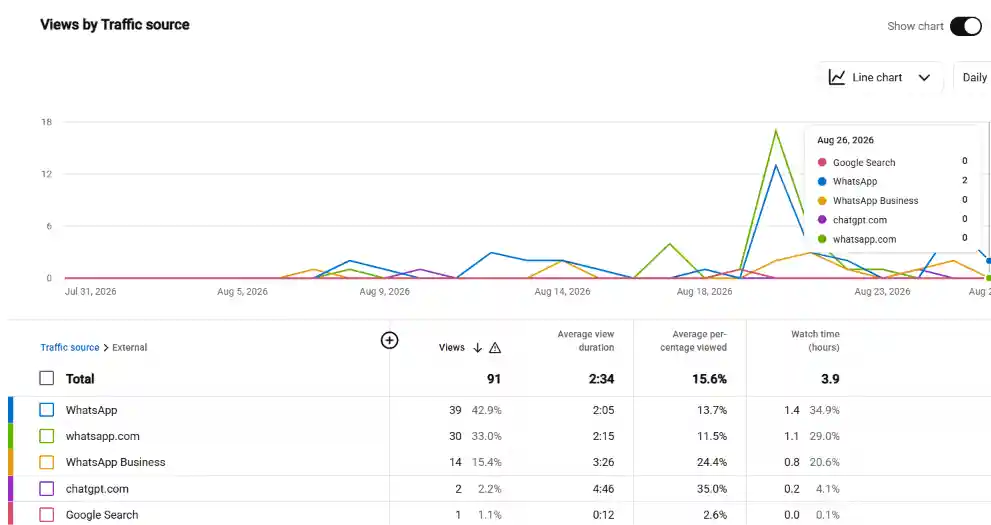
Google traffic appears under the External source inside the same traffic report. Click Traffic source types, select External, and the list names the specific sites and apps sending views, with Google Search listed separately.
Videos that answer a clear how-to or comparison question tend to pick up this traffic, because Google frequently shows video results for those queries. Growth in the External line after a title change is a strong sign your metadata now matches how people phrase the question on Google, while helping the YouTube Algorithm understand your content.

What is New in YouTube Studio Analytics
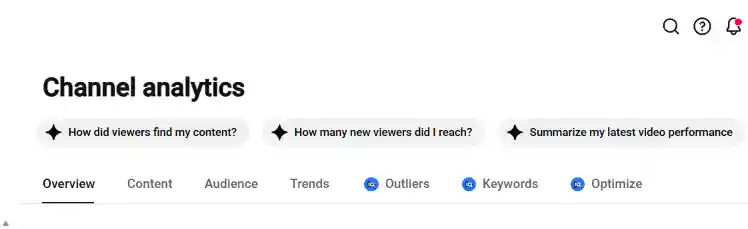
The tab row is changing, and many published guides now describe an interface that no longer matches what you see. Older articles refer to separate Reach and Engagement tabs. Most channels today see those reports merged into the Content tab instead.
Some channels also see extra tabs beside the standard four, including Outliers, Keywords, and Optimize. These are rolling out gradually and may not appear on your channel yet. Studio also now offers AI prompt shortcuts above the Overview report, with suggestions such as how viewers found your content and how many new viewers you reached.
Two practical takeaways. First, trust your own screen over any guide, including this one, when the two disagree. Second, check the tab row every few months, because the reports move.

Your Monthly YouTube SEO Reporting Routine
Fifteen minutes a month is enough to keep a channel pointed in the right direction. Run these five steps in order.
- Check the traffic mix: Open the Content tab and note what share of views came from YouTube search. Compare it against last month.
- Pull the search terms: List every query sending meaningful traffic. Mark any term missing from the title or description of the video it points to.
- Sort by impressions, then read CTR: Ignore any video with a small impression count. For the rest, flag anything sitting well below your own channel average.
- Open the retention curve on your two newest videos: Note the intro percentage and the timestamp of the first dip.
- Pick one fix: One title rewrite, one thumbnail swap, or one change to how the next video opens. One change at a time is the only way to know what worked.
Frequently asked questions
1. Is YouTube Studio analytics free?
Yes. YouTube Studio analytics is free for every channel, with no upgrade or paid tier. Sign in at studio.youtube.com and click Analytics in the left menu to open the full dashboard.
2. How often does YouTube Studio analytics update?
YouTube’s own documentation puts traffic source data on a 48 to 72 hour delay, and recommends allowing at least 72 hours before comparing numbers. Judge a new video after three days, not three hours.
3. What is a good click-through rate on YouTube?
YouTube reports that half of all channels and videos land between 2% and 10%. Read impressions first, because a high rate on a few hundred impressions tells you almost nothing.
4. Where do I see what people searched to find my video?
Open the Content tab, find the card showing how viewers find your content, click Traffic source types, then select YouTube search. The report lists the exact terms viewers typed before reaching your video.
5. Can I export data from YouTube Studio analytics?
Yes. Click Advanced mode in the top right of YouTube Studio analytics, choose your metrics and date range, then use the export option to download a spreadsheet for reporting or deeper analysis.
The Number that Matters Most
If you check one thing this week, make it the search terms report. Every other metric describes what happened. That report tells you the exact words people used to find you, which is the closest thing YouTube gives you to a direct line into your audience’s head. Fix the gap between those words and your titles, and the rest of the numbers usually follow.
Also Read: YouTube Channel Optimization: Fix Your Channel First